Best user acceptance testing tools in 2026

What’s in this article
- What is UAT in project management?
- What should you look for in user acceptance testing software?
- Which are the best UAT testing tools in 2026?
- How does the right UAT tool change your testing cycle?
- How do you run UAT when your testers are clients — not colleagues?
- How do you switch UAT tools without disrupting your team’s workflow?
- FAQ
User acceptance testing (UAT) is the final phase of software validation where real users verify that a product meets agreed business requirements before release, and its main advantage is catching issues that automated tests and internal teams consistently miss.
Key takeaways
- UAT tools fall into three categories: visual feedback tools, test case management tools, and full lifecycle platforms — choose based on your team’s size and technical skill level.
- The right user acceptance testing software eliminates vague feedback and missing context — the two issues that slow every UAT cycle down.
- Non-technical testers — including clients — need a frictionless tool. If reporting a bug takes more than a minute, most testers won’t do it. A widget on the page that captures context automatically is the highest-impact change you can make to a UAT cycle.
- External client UAT is a different problem from internal testing. Clients describe symptoms, test on unexpected devices, and won’t create accounts for a tool they’ll use once. The tool needs to work for them without any onboarding.
- When switching UAT tools, always finish the active cycle on the existing tool, test the new one with real testers on a small task, and export your data before you leave.
What is UAT in project management?
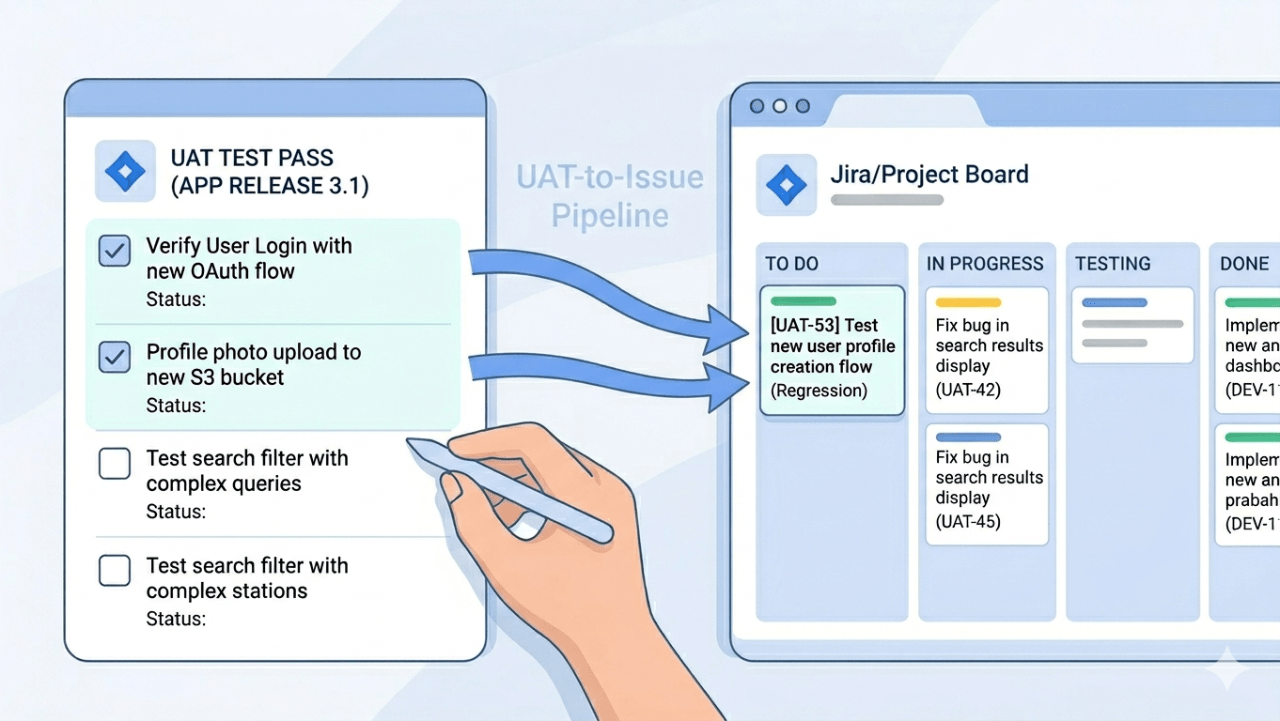
In project management, UAT is the formal sign-off phase where business stakeholders verify that a deliverable meets the agreed requirements — before it goes live or gets handed over to the client. Unlike earlier QA phases, which are run by technical teams validating technical specifications, UAT involves the people who will actually use the system. They test against real workflows, not test scripts written in a vacuum.
The ISTQB glossary defines acceptance testing as: formal testing conducted to determine whether a system satisfies acceptance criteria, user needs, requirements, and business processes — enabling stakeholders to decide whether to accept the system.
A developer can confirm that a button submits a form correctly. Only a real user can tell you whether the form fits into their actual daily workflow.
What should you look for in user acceptance testing software?
A UAT tool needs to work for people who aren’t developers. That’s what sets it apart from general QA tooling. The core capabilities to look for:
- Easy bug reporting — testers should be able to flag an issue in under a minute, with no technical knowledge required.
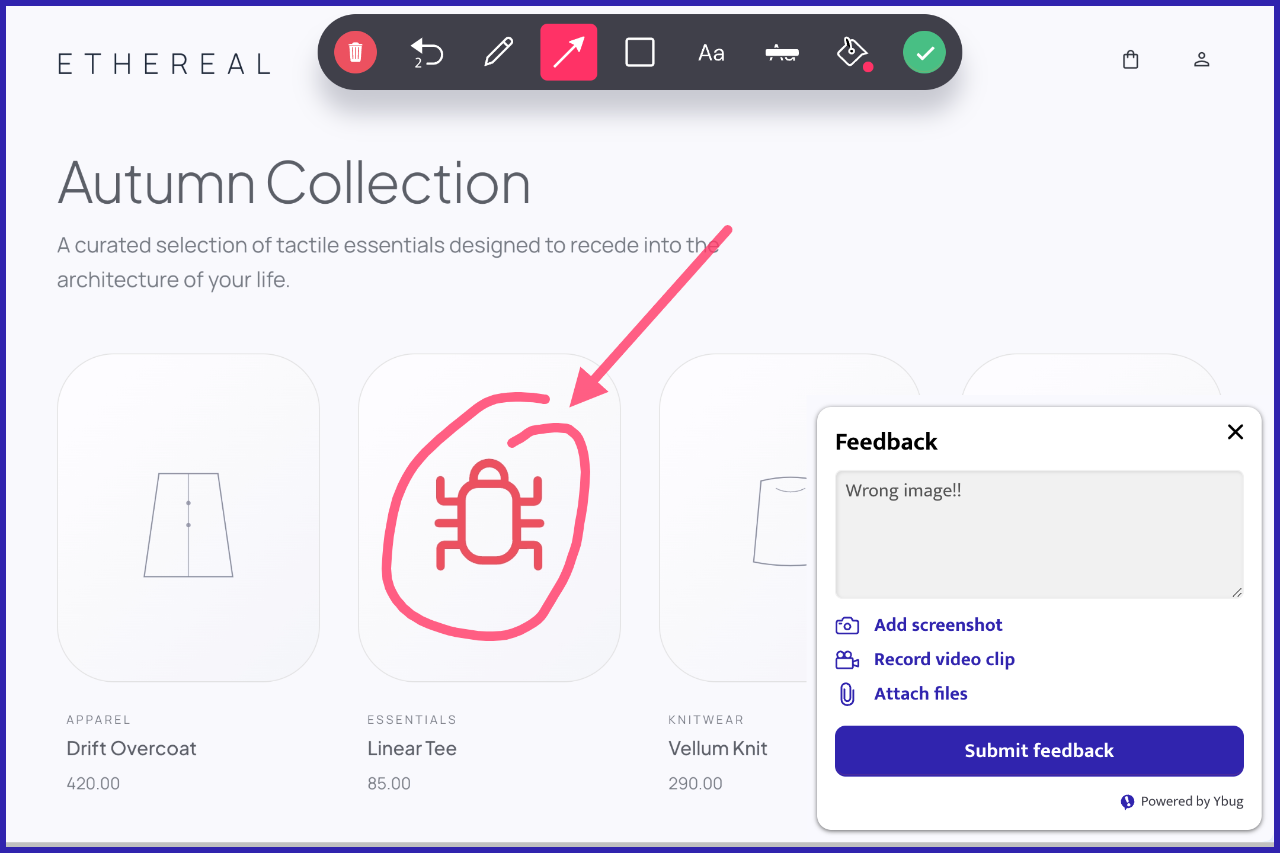
- Visual context — screenshots, annotations, and screen recordings reduce back-and-forth by giving developers the exact context they need.
- Automatic metadata capture — browser version, OS, screen resolution, and URL attached automatically. No more “works on my machine” situations.
- Test case management — the ability to organize test cases, assign them to named testers, and track pass/fail results across the testing cycle.
- Integrations — feedback should flow directly into Jira, GitHub, Trello, or whatever project management tool your team already uses.
Getting actionable feedback from non-technical testers is the hardest part of UAT. When designing Ybug’s widget, we obsessed over reducing friction — testers shouldn’t have to think about what information to include. The tool captures it automatically.
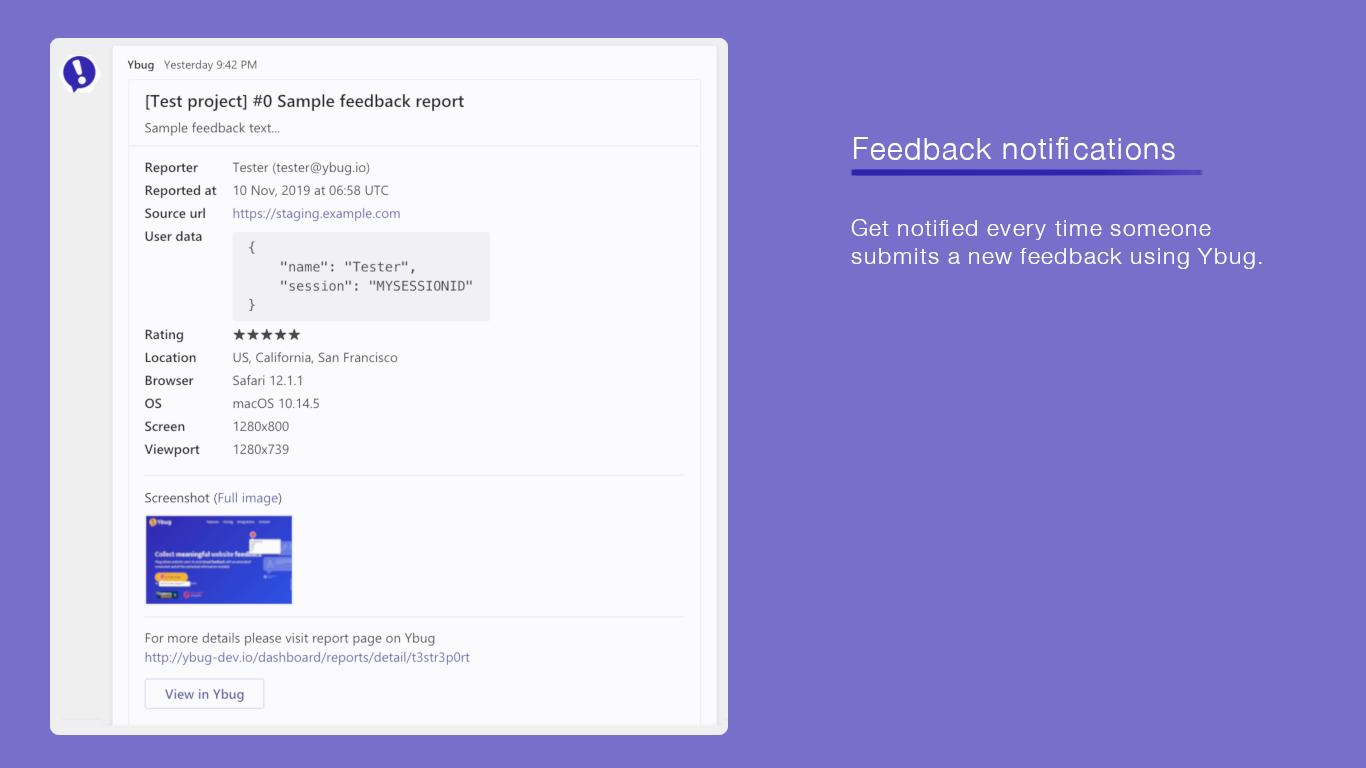
One pattern we see repeatedly: teams that rely on email or Slack for UAT feedback spend more time chasing context than fixing bugs. A developer needs to know the URL, the browser, the screen size, and the exact sequence of actions that led to the issue. Without a dedicated tool capturing this automatically, that context has to be requested manually — and it rarely arrives in usable form.
Which are the best UAT testing tools in 2026?
The tools below were selected based on G2 user ratings and frequency of recommendation across independent review sources. G2 ratings sourced from g2.com.
| Tool | Best for | Technical skills needed | Free plan | G2 rating |
| Ybug | Visual feedback on websites & web apps | Low | Yes (FREE) | 4.8 / 5 |
| TestRail | Test case management & documentation | Medium | No (free trial) | 4.4 / 5 |
| Jira | Issue tracking for agile teams | Medium | Yes (limited) | 4.3 / 5 |
| TestMonitor | Full UAT lifecycle management | Low-Medium | No (14-day trial) | 4.4 / 5 |
| Google Sheets | Simple free tracking for small teams | Low | Yes | N/A |
Ybug — visual feedback built for web UAT
Ybug is a visual feedback tool designed for websites and web applications. It adds a lightweight widget to any site — testers click it, annotate a screenshot, write a comment, and submit. The report lands in your project management tool with URL, browser, OS, screen resolution, and console logs attached automatically.
Most testers aren’t developers. They don’t know what browser version they’re running or how to open a console log. Ybug captures all of this without asking them to do anything extra.
Ybug is purpose-built for UAT feedback on web projects — whether you’re working on a client site, an internal tool, or a SaaS product in staging environment testing. Reports flow directly into Jira, GitHub, Trello, Slack, and other tools via native integrations.
TestRail — test case management for structured UAT
TestRail is one of the most widely used test case management tools for structured UAT programs. It lets you create test cases, organize them into test suites, assign them to testers, and track pass/fail status across the testing cycle. It integrates with Jira, GitHub, and most CI/CD pipelines.
TestRail is built for QA professionals. Non-technical business users often find the interface dense. It works best as a back-end organizational layer for development teams running formal UAT on complex software, paired with a simpler front-end tool for the testers themselves.
Jira — issue tracking for agile teams
Jira handles UAT well if your team is already in the Atlassian ecosystem. You can create test cases as issues, use custom fields for pass/fail tracking, and manage feedback in the same backlog as your development work.
The practical limitation: getting non-technical users access to Jira can be onerous. UAT practitioners report this regularly — setting up accounts, permissions, and projects for business users who will test for two weeks and never log in again is a recurring friction point. Many teams fall back to Excel test scripts combined with a Zoom or Teams call — it’s less elegant, but it works for smaller projects.
TestMonitor — full UAT lifecycle management
TestMonitor is a dedicated UAT and test management platform with a cleaner interface than enterprise tools. It covers test case creation, execution tracking, defect management, and reporting in a single tool. Role-based access makes it well-suited for mixed teams where both technical and non-technical stakeholders participate in the same UAT cycle.
One user described their workflow before TestMonitor: test cases tracked in spreadsheets passed around via email, or testers going through cases in their heads. After switching, they had fully defined test runs with pass/fail results flowing directly into Jira as tickets. It’s a strong fit for larger projects requiring formal approval workflows and audit trails.
Google Sheets / Excel — the free fallback
Not every project needs dedicated user acceptance testing software. For small teams or simple projects, a shared spreadsheet with test cases, pass/fail columns, and a comments field gets the job done. In startup environments, Google Docs and Sheets remain popular because they’re simple, free, and require no onboarding.
Spreadsheets don’t capture screenshots, metadata, or technical context. Once you’re running UAT with more than a handful of testers, the gaps become painful. You’ll spend more time chasing missing information than fixing actual bugs.
How does the right UAT tool change your testing cycle?
⚠️ A pattern that plays out in real projects: Users are briefed on Monday, nobody logs in until Wednesday, half the test scripts are done by week three, and critical bugs surface four weeks after launch. The process and templates are rarely the problem — the tool is.
If you want a detailed breakdown of how to structure UAT — test plans, test case formats, sign-off documents, and checklists — that’s covered in our UAT testing templates guide. What we cover here is the tool layer: what happens when the user acceptance testing tools you choose create friction, and what happens when they don’t.
The most common reason UAT drags on isn’t a missing template or an unclear deadline. It’s a gap between what happened and what got reported. A tester submits “the page doesn’t work” — no screenshot, no URL, no browser info. A developer has to go back, ask for clarification, and wait. Multiply that by 30 reports and you’ve lost days. Then the deadline slips, stakeholders push back, and the team ships with known issues to make the release date.
Tools that capture context automatically — URL, browser, OS, screen resolution, console logs — break this loop before it starts. The tester describes what went wrong. The tool handles everything else. That’s the single biggest workflow change a visual feedback tool delivers in UAT.
The second friction point is access. A bug reporting tool that requires non-technical testers to create accounts, navigate an unfamiliar interface, and fill in mandatory technical fields will see low participation. The tool that gets used consistently beats the tool that is theoretically better.
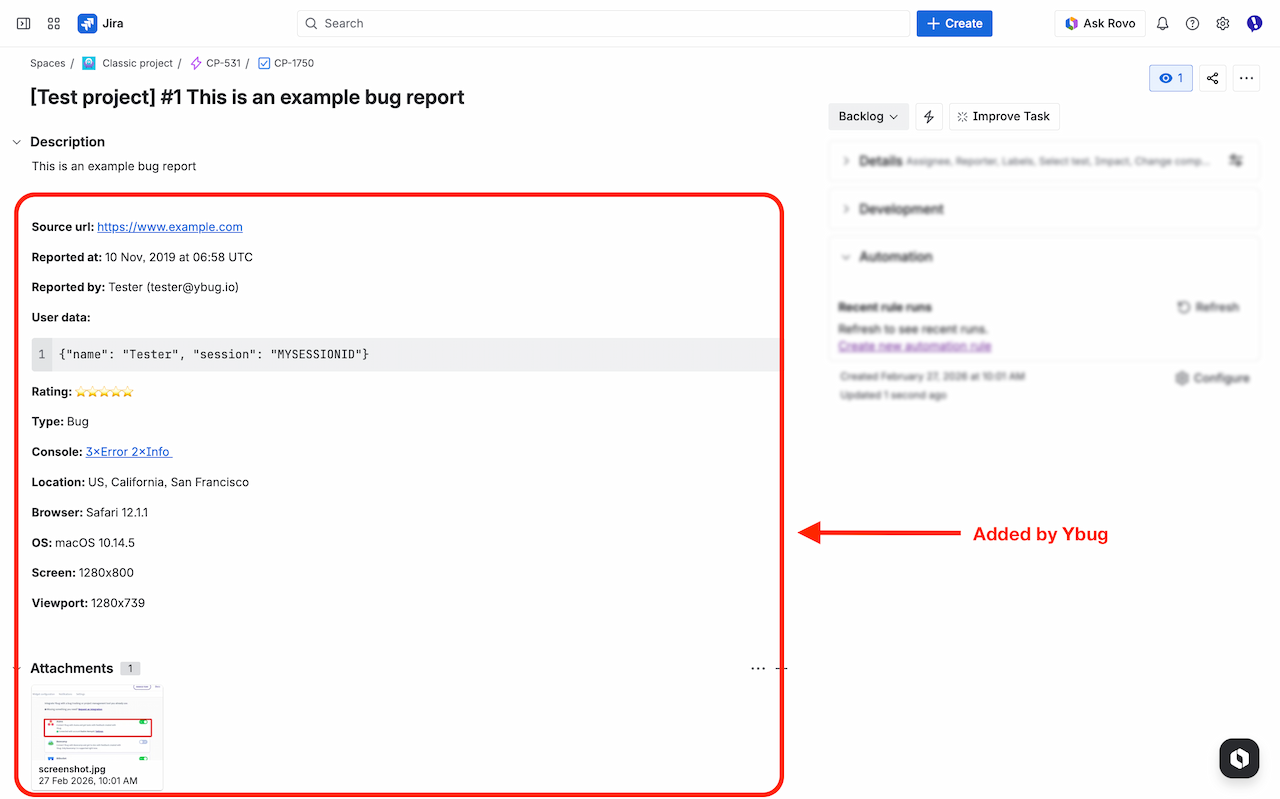
Ybug captures technical context automatically with every report — so your testers focus on describing what went wrong, not how to fill in a form.
(no credit card needed)
How do you run UAT when your testers are clients — not colleagues?
External UAT — where the tester is your client, a business stakeholder, or an end user with no technical background — is a different problem entirely. For agencies, freelancers, and anyone delivering web projects to clients, it’s the default situation.
The classic failure mode: you send a staging link, ask the client to test it, and wait. What comes back is a mix of chat messages, emails with blurry phone screenshots, and comments like “the thing at the top doesn’t look right.” No URL. No browser. No indication of whether they were on desktop or mobile. A developer has to spend 40 minutes reproducing an issue that took the client 30 seconds to notice.
What makes client UAT harder than internal testing?
- Clients won’t create accounts for a tool they’ll use once. Asking a client to sign up for Jira, learn the interface, and file a structured ticket to report a misaligned logo is unrealistic. The friction kills participation before testing even starts.
- Clients describe symptoms, not causes. “It doesn’t work” is the most common bug report in any client UAT cycle. Without automatic context capture, every vague report triggers a back-and-forth conversation that delays the fix by at least a day.
- Clients test on unexpected devices and browsers. Your developer tested on Chrome on a MacBook. The client is reviewing on Safari on an older iPhone. The rendering issue they’re describing is real — but without knowing what device they were using, it can’t be reproduced.
- Feedback arrives through the wrong channels. When there’s no dedicated tool, clients default to email, a marked-up PDF, or a voice note. The result is feedback scattered across different threads, with no traceability and no clear owner.
What does smooth external UAT look like in practice?
Teams that handle client UAT well tend to share a few consistent habits:
- Remove the login barrier completely. Your client should be able to submit a report from the staging site without creating an account or installing anything. A widget on the page — one click, annotate, submit — is the only onboarding model that consistently works with non-technical testers. Tools with guest submission support this directly: clients report issues without any login required.
- Let the tool handle the technical context. The client’s job is to describe what they saw and what they expected. Browser version, OS, screen resolution, URL, console errors — none of that should require any action on their part.
- Set clear scope before handing over the staging link. Clients without structure will review everything — including things that are out of scope or intentionally placeholder. A short brief explaining what to test, what’s not ready yet, and how to submit feedback prevents a significant portion of irrelevant reports.
- Close the loop visibly. When a client submits feedback and hears nothing, they assume it was ignored. A tool that sends an automatic confirmation when the report is received — and a notification when it’s resolved — keeps clients informed without requiring a PM to write individual update emails for every ticket.
For a feedback tool for agencies and feedback tool for freelancers, this is the scenario where a visual feedback widget delivers the clearest return. The alternative — a PM manually triaging email threads, chasing missing context, and reformatting client comments into trackable tickets — is a hidden time cost that compounds across every project you run.
See how Ybug handles client UAT — no login required for your clients, full technical context captured automatically.
(no credit card needed)
How do you switch UAT tools without disrupting your team’s workflow?
There’s a specific kind of project overhead nobody talks about: the period when you’re evaluating tools. You’ve outgrown your current setup — or you inherited something that never really worked — and now you’re responsible for finding a replacement. You try one tool, it doesn’t fit. You try another, same problem. Meanwhile, the team is waiting, or worse, running UAT on the old system while you evaluate the new one in parallel.
What should you check before committing to a new UAT tool?
Before you run a full trial, answer these four questions:
- Can non-technical testers use it without training? Hand the tool to someone outside the dev team and watch what happens. If they need more than 5 minutes to submit their first report, the onboarding friction will become a recurring problem in every UAT cycle.
- Does it integrate with the tools your team already uses? A UAT tool that creates a parallel workflow — where reports live in one place and development tasks live in another — adds work instead of removing it. Check integration with your project management tool first.
- What happens to your existing data? If you’re switching mid-project, find out whether you can export test cases, results, and defect history from your current tool. Losing a testing history mid-cycle is a serious problem for traceability.
- How does pricing scale with your team? A tool that’s affordable for one person often becomes expensive once you add the full team. Check per-seat pricing before you commit, not after.
How do you run a meaningful trial without slowing the team down?
The mistake most people make when evaluating tools is running trials in isolation. UAT tools are used by people who aren’t you. A tool that feels intuitive to a PM or developer can be confusing to a business user or a client tester who logs in once every three months.
A more reliable approach: pick one real, small UAT task — a single feature, a short test cycle, a handful of test cases — and run it through the new tool with your actual testers. Don’t simulate it. The friction points you need to find are the ones non-technical testers hit.
🔄 A pattern worth avoiding: evaluating three tools back-to-back while the team waits. Each new tool introduces its own learning curve, and testers who’ve already adapted to one tool will resist switching again. If you’re genuinely unsure between two options, run them simultaneously on two separate small tasks — then decide. The switching cost compounds with every change.
What’s the smoothest way to migrate the team to a new tool?
The hard part is getting the team to actually use the new tool consistently — especially when they’re mid-project and already have habits built around the old one.
- Don’t switch mid-UAT cycle. Finish the current round on the existing tool. Switching mid-cycle splits your defect history across two systems.
- Export and archive the old data before you switch. A clean export of past test results and defect logs protects you if questions come up later.
- Run a 15-minute kick-off with the team before the first UAT session on the new tool. Show them exactly how to submit a report. Most onboarding friction comes from people not knowing the one action they need to take.
- Measure adoption after the first cycle. Check how many reports came in, whether required fields were filled, and whether developers got what they needed. If something isn’t working, the first cycle is the right time to catch it.
For web-based UAT specifically, widget-based tools reduce the migration problem considerably — there’s no interface for testers to learn, because the widget lives on the website itself. Testers don’t switch tools; they just click a button on the page they’re already testing.