Staging environment: how to test, collect feedback & go live with confidence

What’s in this article
- What is a staging environment?
- Staging vs. development vs. production: what's the difference?
- Who uses a staging environment - and how?
- Why do you need a staging environment?
- What does a staging environment need to include?
- How to set up a staging environment
- Staging environment best practices
- Common staging mistakes
- How to collect feedback on a staging environment
- FAQ
A staging environment is a pre-production replica of your live website or application - a private copy where developers, testers, and stakeholders can validate changes before they go live. It's the final checkpoint between writing code and releasing it to real users.
If you've ever pushed an update directly to a live site and watched something break in front of actual customers, you already know why staging environments exist. If you haven't - you will, unless you use one.
Key takeaways:
- A staging environment is a private copy of your live site for testing before deployment
- Every role - developers, QA, PMs, clients - should review on staging before go-live
- The #1 staging mistake is collecting feedback through email instead of a structured tool
- Ybug's widget captures annotated screenshots with full technical context automatically
What is a staging environment?
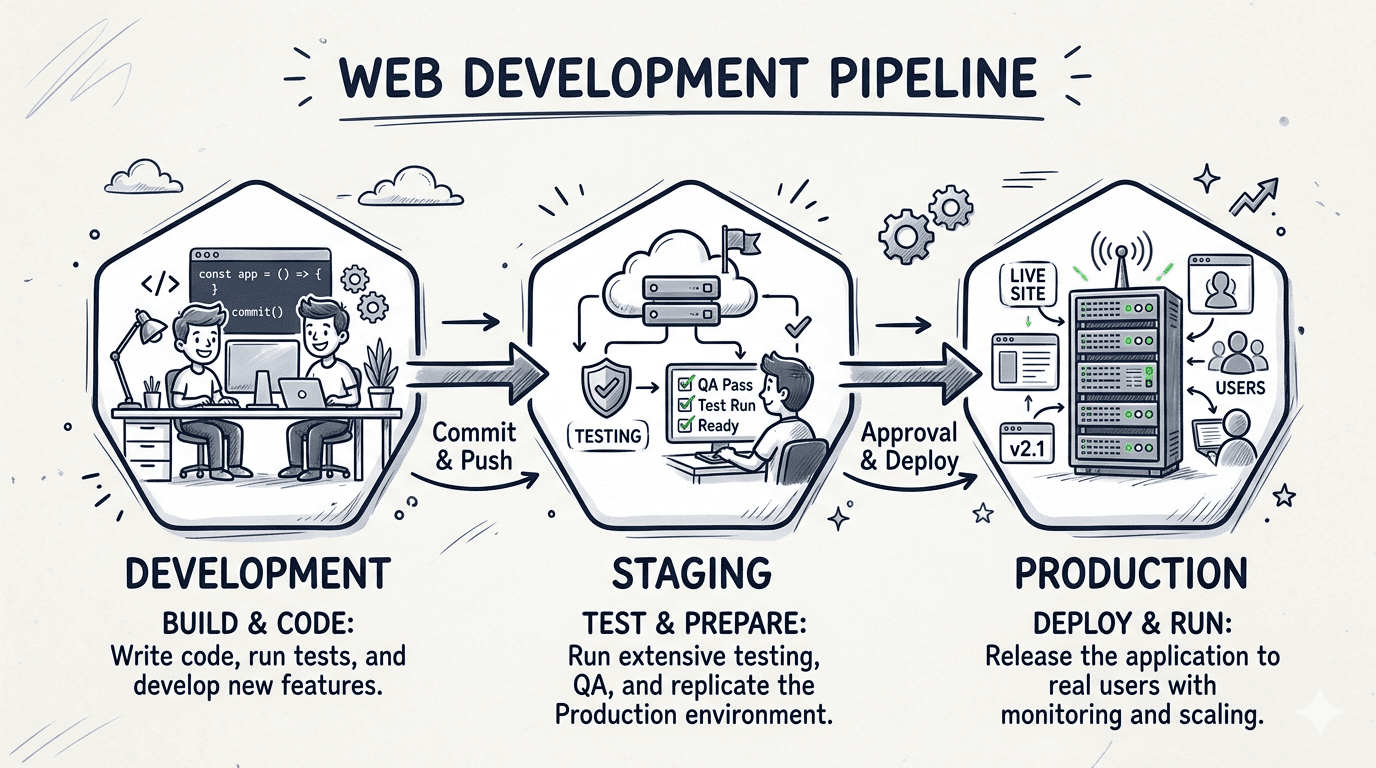
A staging environment - also known as a pre-production environment, pre-live site, or staging sites - is an exact copy of your production environment that's hidden from the public. It runs on the same stack: the same server configuration, database structure, and dependencies as the live site, but it's password-protected or VPN protected and blocked from search engine indexing.
The staging environment meaning in software development is precise: it's the final validation layer before deployment. Not a sandbox for experiments. Not a rough development build. A staging environment mirrors production as closely as possible so that issues discovered there behave identically to how they'd behave on the live site.
Think of it as a dress rehearsal. The live website is opening night - the staging environment is where you run every scene until it's ready.
Staging vs. development vs. production: what's the difference?
In staging software development, projects typically move through three distinct environments before a change reaches real users. Each serves a different purpose, involves different people, and operates under different rules:
| Environment | Who uses it | What happens here | Data used | Public access |
| Development (local) | Developers only | Writing, building, and initial testing of code on a local machine | Dummy / synthetic data | No |
| Staging | Developers, QA, PMs, clients, testers | Final pre-release validation in a mirror of production | Production-like (anonymized) data | No - password/VPN protected |
| Production (live) | End users | The live website. Monitored, optimized, and fully deployed | Real user data | Yes |
The key distinction: development environments are for building; staging environments are for validating. Code in development is often unpolished and tested in isolation. Staging brings everything together - all features, integrations, real-ish data - under the same conditions as production.
Some larger teams also run a dedicated QA/UAT environment between development and staging, particularly when user acceptance testing involves external stakeholders, clients, or regulated sign-off processes. In these setups, QA happens in an isolated testing environment, and only sign-off-ready builds move to staging.
Who uses a staging environment - and how?
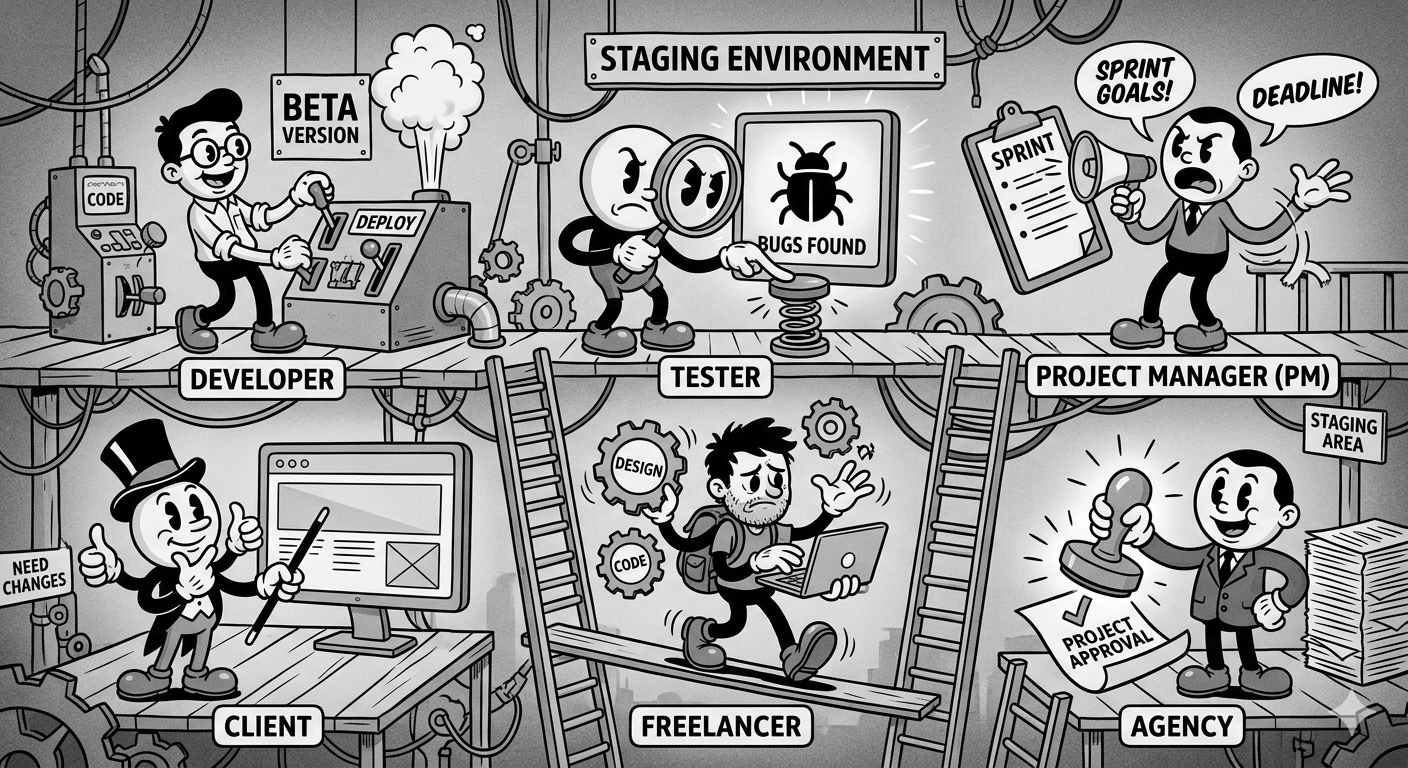
Staging isn't just for developers. Every role in a web project interacts with the staging environment differently - and each has a different definition of "this is ready to ship."
| Role | What they're validating on staging | The question they're answering |
| Developer | Technical correctness - does the code run, do integrations work, are there console errors? | Did I build it right? |
| QA tester | Functional completeness - do all features work as specified, including edge cases? | Does it work correctly? |
| Project manager | Scope completion - is everything from the brief delivered? | Did we build the right thing? |
| Client / stakeholder | Visual and experiential - does it look right, does it feel right? | Do I approve this? |
| Freelancer | Client readiness - is this polished enough to present? | Can I send this to the client? |
| Agency | Delivery quality - does it meet contract requirements? | Can we go live? |
Each role spots different problems. A developer scanning for console errors will walk right past a misaligned button that a client notices immediately. A QA tester running scripted test cases may not catch the content typo a project manager catches on first glance. All of these perspectives need to happen on staging before go-live - which means the feedback process has to be accessible to everyone, not just technical team members.
Ybug's feedback widget is designed exactly for this: a feedback tool for testers, a review tool for clients, and a bug reporting layer for developers - all in one, installed directly on the staging URL. Agencies, startups, project managers, and freelancers use it to run staging reviews that actually produce actionable output.
Why do you need a staging environment?
Skipping staging is a gamble that teams usually only take once. Here's what a proper staging setup protects you from:
Broken deployments in front of users. A plugin update that works fine locally can conflict with another library in production. Without staging, you find this out when customers do - at the worst possible moment.
Integration failures. Payment gateways, email services, analytics tools, and CRMs often behave differently in production than in a local environment. Staging lets you verify that every integration fires correctly before real transactions are at stake.
Cascading bugs. In complex applications, a change to one component can silently break another. Testing in staging - which mirrors the full production setup - surfaces these interactions before they reach users.
Missed client expectations. A design that looks perfect in Figma may feel wrong in a live browser. For agencies and freelancers, staging is the natural place to get client approval - clients can review the site as it will actually look and behave, not just in static mockups.
Zero downtime for testing. You can run performance tests, security scans, content reviews, and QA testing without taking the live site offline or degrading performance for real visitors.
A rollback reference point. If something goes wrong in production after a deployment, a known-good staging snapshot gives you something stable to diagnose against.
The staging environment is where real feedback happens - before the stakes are high. It's the difference between discovering a broken checkout flow on a quiet Tuesday afternoon versus in the middle of a product launch.
What does a staging environment need to include?
A proper staging setup is more than just a copy of your files. To be reliable, every component matters:
| Component | Why it matters | Common mistake |
| Same server configuration | OS version, PHP version, web server (Apache/Nginx), caching layers must all match production | Config differences cause the classic "works in staging, breaks in production" failure |
| Production-like data | Real (or anonymized) data surfaces edge cases that dummy data misses entirely | Using synthetic test data that doesn't reflect actual user behavior patterns |
| All third-party integrations | Payment, email, CRM, analytics - configured with sandbox/test credentials, not disabled | Testing with integrations turned off, then discovering failures post-launch |
| Password protection | HTTP authentication keeps the staging URL private from the public | Staging sites exposed - search engines index it, users stumble across it |
| VPN (Virtual Private Network) | Alternative to password protection. The staging server is placed in a private network (VPC) with no public IP address. Users must connect to the corporate VPN to "enter" that network. | |
| noindex + robots.txt | Prevents staging content from appearing in Google and causing duplicate content issues | Forgetting to add these before sharing the staging link externally |
| SSL certificate (HTTPS) | Staging should run on HTTPS to mirror production security behavior | HTTP-only staging masks security-related bugs and mixed-content errors |
| Defined deployment process | A repeatable, documented path from staging to production - ideally CI/CD automated | Manual deployments that vary between team members and introduce inconsistencies |
How to set up a staging environment
The setup method depends on your tech stack and hosting environment. Here are the most common approaches:
How do you set up staging in WordPress?
Most managed WordPress hosts - WP Engine, Kinsta, Flywheel, SiteGround - offer one-click staging creation from the hosting dashboard. This clones your live site to a staging subdomain (e.g., staging.yoursite.com) automatically, with no manual database work needed.
For self-hosted WordPress, plugins like WP Staging or WP Stagecoach handle the cloning process from within the WordPress dashboard.
How do you create a staging environment for custom web apps?
For Node.js, Laravel, Django, or other framework-based apps, staging is typically a separate server, container, or VPS configured with environment variables pointing to staging databases and staging API credentials. Docker makes it straightforward to spin up an environment that mirrors production configuration exactly.
How does CI/CD automate staging deployments?
Teams using GitHub Actions, CircleCI, or similar tools often automate staging deployments entirely: every push to a staging branch triggers a fresh deployment. Platforms like Netlify and Vercel go further - they generate a unique preview URL for every branch push, effectively giving every feature branch its own isolated staging environment.
How do you set up staging on cloud hosting platforms?
AWS, DigitalOcean App Platform, and Cloudflare Pages all support multi-environment setups through separate deployment targets. The pattern is the same: a staging environment that receives deployments for review, and a production environment that only receives approved builds.
Staging environment best practices
Getting staging right takes more than just creating a copy. These practices keep the process efficient and the results trustworthy:
Keep staging in sync with production. Refresh the staging database before each testing cycle. Stale data leads to tests that don't reflect real conditions - and to the "that bug doesn't exist on my staging" confusion that wastes everyone's time.
Never use real payment credentials on staging. Always use sandbox or test accounts for payment gateways and third-party services. Accidentally processing a real transaction on staging is a compliance problem, not just a bug.
Define go/no-go criteria before the review starts. Without clear exit criteria, staging reviews drag on indefinitely. Decide in advance: what needs to pass before you're cleared to deploy?
Involve the right people - not just developers. Project managers, QA engineers, and clients should all review on staging. Their perspectives catch entirely different categories of issues that developer-only reviews miss.
Test every integration, not just the code that changed. A deployment that only touches the frontend can still break backend integrations through shared dependencies. Run a full regression check, not just targeted spot tests.
Never push untested changes straight to production. This sounds obvious, but under deadline pressure it happens constantly. Make the rule non-negotiable: if it hasn't passed staging, it doesn't ship.
Document what was tested and by whom. Keep a log of test cases run, who reviewed, what was signed off, and which known issues were consciously deferred. This audit trail matters when questions arise post-launch.
Common staging mistakes
| Mistake | What goes wrong | How to avoid it |
| Staging out of sync with production | Tests pass in staging, fail in production due to outdated data or config | Refresh staging from production before each testing cycle |
| Developer-only reviews | UX, content, and business logic issues aren't caught | Involve PMs, clients, and QA in every staging review |
| Feedback collected informally | Issues get lost across email chains, Slack threads, and verbal notes | Install a feedback tool directly on the staging URL |
| Skipping regression testing | A fix for one bug silently breaks another area | Run full regression tests, not just targeted checks on new code |
| No exit criteria defined | Review drags on, go-live date slips | Define what "done" means before the review starts |
| Staging publicly accessible | Search engines index it; users find incomplete builds | Password protection + noindex tags, always |
| Pushing to production under deadline pressure | Shortcuts introduce bugs that staging would have caught | Enforce staging-first as a non-negotiable team policy |
How to collect feedback on a staging environment
Testing on staging often involves multiple people - developers, QA engineers, project managers, and clients - all reviewing the same build at the same time. The feedback workflow is where projects typically break down.
Common problems: feedback arrives as vague emails ("the header looks off"), clients report bugs without environment details, issues get reported multiple times by different people, and nothing gets fixed because nobody knows who's responsible for it.
The root cause is almost always the same: there's no structured channel for capturing and routing feedback directly on the staging URL.
Why email and screenshots fall short
When reviewers email their feedback, three things consistently happen: the screenshots lack annotations, the environment details (browser, screen size) are missing, and the same issue gets reported by five different people independently. The developer ends up spending more time triaging feedback than actually fixing issues.
For website feedback for developers, the bar is higher than "I got a screenshot in my inbox." Developers need to know the browser, the OS, the page URL at the moment of the bug, and ideally what the JavaScript console was showing. None of that comes through in an email.
The feedback widget approach
The most efficient method is to install a visual feedback tool directly on the staging URL. When Ybug's widget is active on the staging site, anyone reviewing - regardless of their technical level - can click the feedback button, draw annotations directly on the page, write a description, and submit.
What gets captured automatically with every report:
- Annotated screenshot of the exact page state
- Browser name and version
- Operating system
- Screen resolution
- Page URL
- JavaScript console errors and warnings
- Timestamp
The report routes directly to your project management tool - Jira, Trello, Asana, GitHub, ClickUp, Slack, and others via integrations. It arrives as a properly formatted, dev-ready ticket - not a raw email, not a Slack screenshot, not a three-paragraph description of something nobody can reproduce.
How this changes the staging review for each role
Developers receive bug reports with full technical context - browser, console logs, OS, URL - and can start reproducing immediately without asking follow-up questions.
QA testers submit structured, complete reports in seconds without leaving the page they're testing. The feedback tool for testers captures what they'd otherwise spend 5 minutes manually recording.
Project managers get a centralized, real-time view of all open issues with status tracking - not a scattered collection of emails and Slack messages to reconcile manually.
Clients can flag issues without knowing what a browser version is. They click a button, draw on the screen, write a sentence, and hit send. The system does the rest.
Freelancers can share the staging URL with a client and have a professional, structured feedback channel already in place - no email chains, no ambiguous screenshots, no "I'm not sure if I mentioned this already."
Setting up the widget before sharing your staging link takes under 5 minutes. Start free to see how it fits your workflow.