Website visual feedback tools for web design: complete guide

What’s in this article
- What is a website visual feedback tool?
- Why does visual feedback matter in web design?
- Which types of website design feedback tools exist?
- What features should a website visual feedback tool have?
- How do different teams use visual feedback in web design?
- How does Ybug work as a website visual feedback tool?
- How do you choose the right visual feedback tool for web design?
- FAQ
A website visual feedback tool is software that lets teams annotate, comment, and report issues directly on a live website or design mockup - and its main advantage is that it replaces vague, out-of-context emails with pinpointed, actionable feedback tied to the exact element that needs fixing.
Key takeaways
- Visual feedback tools let reviewers pin comments directly on websites or designs, eliminating back-and-forth guesswork.
- There are three main types: live website QA tools, design review tools, and on-site user feedback widgets - and each serves a different workflow stage.
- Must-have features include annotated screenshots, automatic technical metadata (browser, OS, resolution), and two-way integrations with your project management tool.
- Developers, PMs, QA testers, and freelancers all benefit - but they use these tools in different ways.
- Ybug is a visual bug reporting tool built for live websites and staging environments, with automatic screenshot and metadata capture included in every report.
What is a website visual feedback tool?
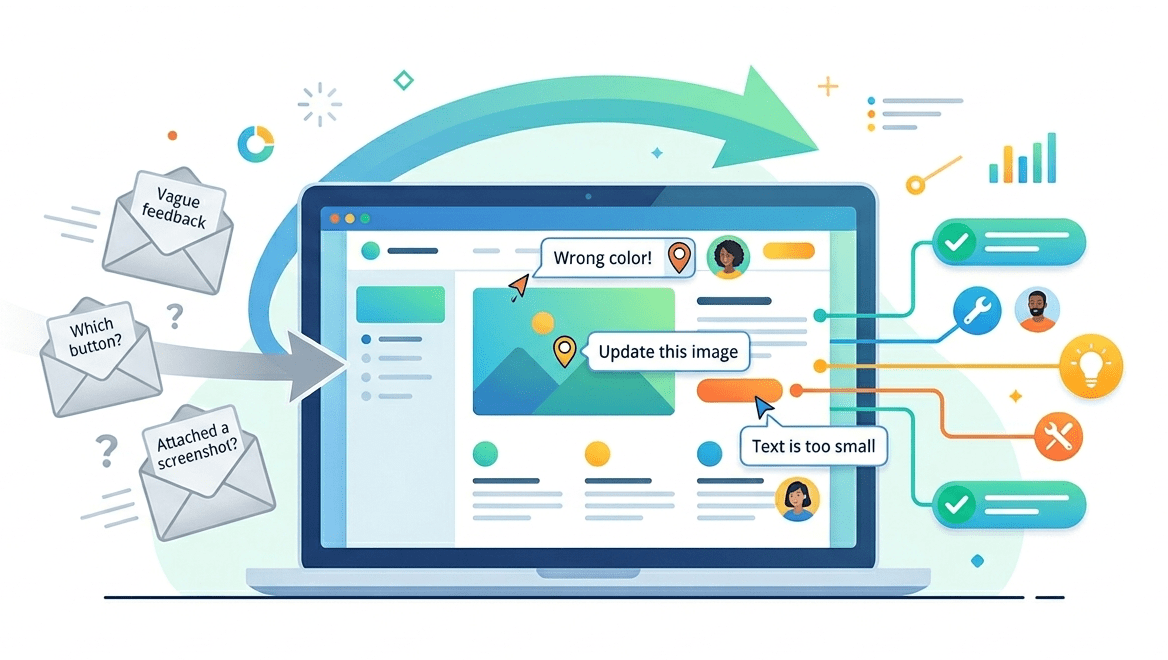
When a stakeholder sends “the button looks off” in an email, you can spend 20 minutes figuring out which button, on which page, in which browser.
A website visual feedback tool ends that guessing game.
These tools let reviewers click on a specific element of a live site or design file and attach a comment, screenshot annotation, or bug report directly to that spot. Every piece of feedback is anchored to its exact location, so developers and designers know immediately what needs changing - no follow-up questions required.
Most tools also capture technical context automatically: URL, browser type, operating system, screen resolution, and device. That information alone eliminates hours of back-and-forth when a bug only appears in a specific browser at a specific viewport width.
Why does visual feedback matter in web design?
Visual feedback in web design helps teams communicate changes directly on the interface instead of relying on vague descriptions. The traditional feedback workflow - a screenshot dropped into an email thread, or a Slack message with a paragraph of loosely described notes - has a fundamental flaw: context is always lost in transit.
You’ve probably seen it:
- unclear feedback
- wrong fixes
- endless clarification loops
According to usability research from Nielsen Norman Group, user feedback is a key source of insight into usability problems and helps teams better understand real user experiences.
When feedback lacks structure, teams don’t just lose time - they lose clarity. See what structured, contextual feedback looks like in practice.
(no credit card needed)
Which types of website design feedback tools exist?
A website design feedback tool can focus on live websites, design mockups, or user feedback collected after launch.
Not all visual feedback tools are built for the same job - and picking the wrong category means missing features and eventually abandoning the tool.
| Type | Best for | Key capability | Typical users |
| Live website QA tools | Staging, UAT, bug tracking | Auto screenshot + browser metadata | Developers, QA testers |
| Design review tools | Mockups, PDFs, design files | Annotation on static assets | Designers, PMs, agencies |
| On-site user feedback widgets | Post-launch, CX research | Embeddable widget on live site | Support teams, PMs, CX managers |
Live website QA tools are the most technically rich. They capture everything a developer needs to reproduce a bug - browser version, screen size, JavaScript console data - without the reporter having to type any of it manually.
Design review tools focus on annotation workflows for files like Figma exports, PDFs, and images. They’re optimized for approval processes, not for technical debugging on live sites.
On-site user feedback widgets sit on your live production site and let actual visitors report problems or leave suggestions. This is real-time customer feedback at the exact point of friction - not a retrospective survey.
The feedback tool you choose should match the stage of your project. During active development and QA, you need technical context captured automatically. After launch, you want to hear directly from real users on the page where they ran into a problem.
What features should a website visual feedback tool have?
Whether you’re evaluating your first tool or replacing one that’s not working, these are the features that actually move the needle:
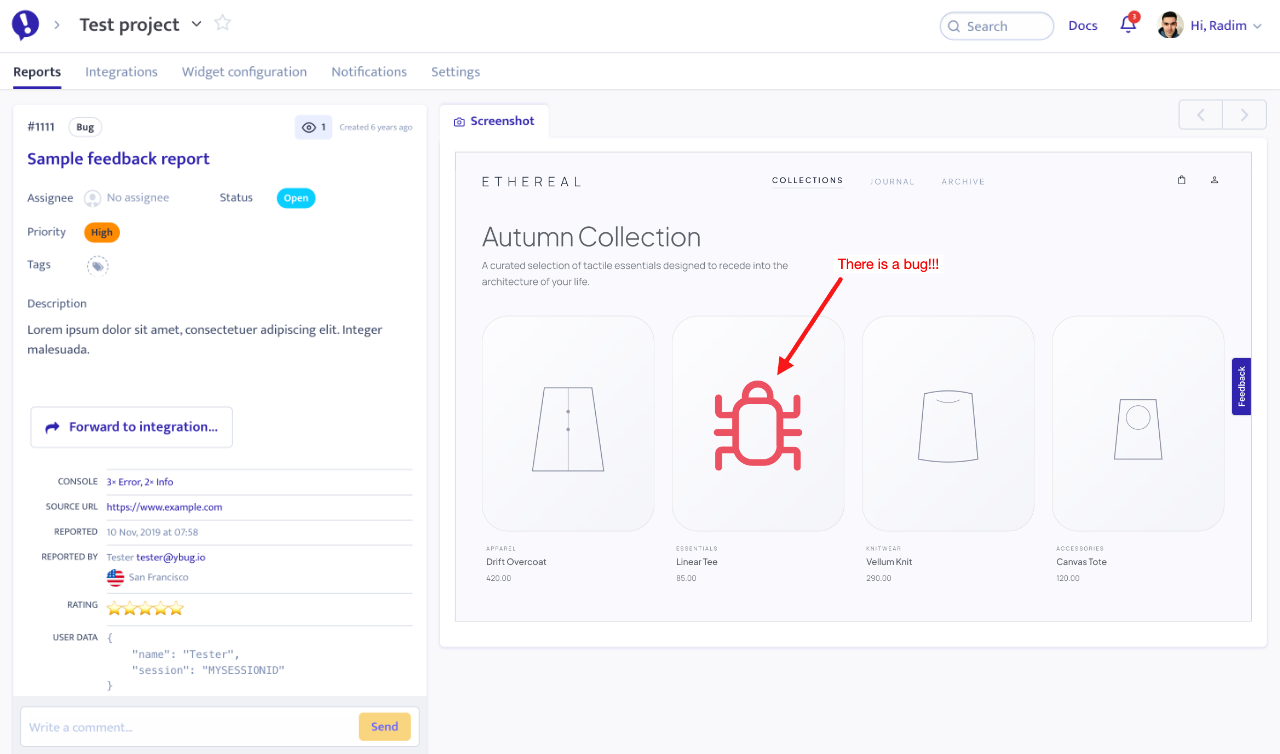
- Annotated screenshots - reviewers draw, highlight, or pin comments directly onto a captured screenshot, making the exact issue unmistakable. No more “the section near the top” descriptions.
- Automatic technical metadata - browser, operating system, screen resolution, and URL should be captured with every report without the user having to type them. Requiring manual input guarantees incomplete bug reports.
- Automated integrations with PM tools - reports and feedback should flow directly into your existing workflow (Jira, Asana, Trello, Caflou, Slack, Linear). Manual exports create an extra copying step that teams quickly stop doing.
- No-friction access for clients and guests - clients shouldn’t need to install a browser extension or create an account to leave feedback. The lower the barrier, the more feedback you actually receive.
- Console log capture (for developer-focused tools) - seeing JavaScript errors alongside a bug report means developers can jump straight to the fix instead of trying to reproduce the issue from scratch.
- Widget customization - control which pages the widget appears on, what fields it collects, and how it looks so it integrates naturally into your product.
If you want a concrete checklist for evaluation, start with these basics: Can a non-technical stakeholder submit accurate feedback? And can a developer reproduce the issue without asking follow-up questions? If the answer is no, the tool will not stick.
How do different teams use visual feedback in web design?
The same tool solves different problems depending on who’s using it.
How do web developers use visual feedback tools?
For developers, the value is reproducibility. A bug report with a screenshot, browser version, console errors, and the exact URL is a solvable problem. A Slack message saying “login page is broken” is not.
Tools connected to a staging environment let developers catch and fix issues before anything reaches production. With website feedback for developers, every incoming report arrives with the context needed to act immediately - no chasing the reporter for details.
How do project managers use visual feedback tools?
PMs care about speed and visibility. A feedback tool for project managers gives them a single view of all open issues - who’s working on what, what’s blocking sign-off, and whether the client’s latest comments have been addressed before the next review call.
Without a structured tool, feedback scatters across email threads, Slack channels, and comment sections. Important issues get lost. Deadlines slip. Visual feedback tools make the entire review cycle visible and manageable.
How do QA testers use visual feedback tools?
QA testers live or die by the quality of their bug reports. A feedback tool for testers that automatically captures metadata means testers can log five detailed, actionable reports in the time it used to take to write one by hand.
During user acceptance testing, this speed matters even more. UAT cycles are short and stakeholders are time-poor - every ambiguous or incomplete report costs a day of follow-up.
Ybug captures annotated screenshots and technical metadata automatically with every report - so your team spends less time explaining and more time fixing.
(no credit card needed)
How does Ybug work as a website visual feedback tool?
Ybug is a visual feedback tool built specifically for live websites and staging environments. You add a simple script. A widget appears. Any team member - or invited client - can use this widget to report an issue directly on the page.
When someone clicks the widget and highlights a problem, Ybug automatically captures:
- An annotated screenshot of the exact page state
- Browser type, OS, screen resolution, and device
- The full page URL
The report goes straight into your connected project management tool - Jira, Trello, Asana, Linear, or any other tool from Ybug’s integrations. No copying, no pasting, no reformatting.
Teams using Ybug report that their QA and UAT cycles shorten significantly - not because they’re working faster, but because every incoming report already has enough context to act on immediately.
How do you choose the right visual feedback tool for web design?
Use this quick decision framework before you commit to any tool:
If most of your feedback is on live websites or staging URLs - choose a live website QA tool. You need automatic metadata capture and direct PM integrations.
If most feedback is on design files, PDFs, or mockups - a dedicated design review tool (Figma comments, Filestage, Pastel) is a better fit for that stage.
If you need to hear from actual website visitors after launch - look for an on-site widget with customer feedback collection built in.
If you’re a freelancer or small agency - prioritize tools with guest access (no client login required) and a simple widget that non-technical clients can actually figure out on their own.
The most common mistake is choosing a tool based on feature lists rather than actual workflow. Start by mapping where feedback currently breaks down in your process - that’s exactly where the right tool needs to fit.
If you want to start collecting structured visual feedback today, start free with Ybug.