Best website feedback tools in 2026: complete guide

What’s in this article
- What does a website feedback tool actually do?
- What are the two types of website feedback tools?
- What features should the best website feedback tool have?
- Which are the best visual feedback tools for teams and clients?
- How does a website feedback tool installation work?
- Are there free website feedback tools?
- How do you choose the right website feedback tool for your use case?
- What are the most common mistakes when choosing a website feedback tool?
- FAQ
A website feedback tool is software that lets users, clients, or team members report issues and suggestions directly on a live or staging website, and its main advantage is that it captures visual and technical context automatically — eliminating the vague emails and back-and-forth that slow every review cycle down.
Key takeaways
- Website feedback tools split into two categories: visual feedback tools for teams and clients, and visitor analytics tools for understanding live site behavior — most teams need one from each.
- The #1 differentiator between visual feedback tools is how much technical context they capture automatically: browser, OS, console logs, page URL.
- For bug reporting, QA, and UAT, look for a widget that pushes reports directly into your project management tool.
- Free plans exist across multiple tools — you don’t need to pay to get started.
- The right tool depends on your use case: client reviews, internal QA, visitor behavior analysis, or all three.
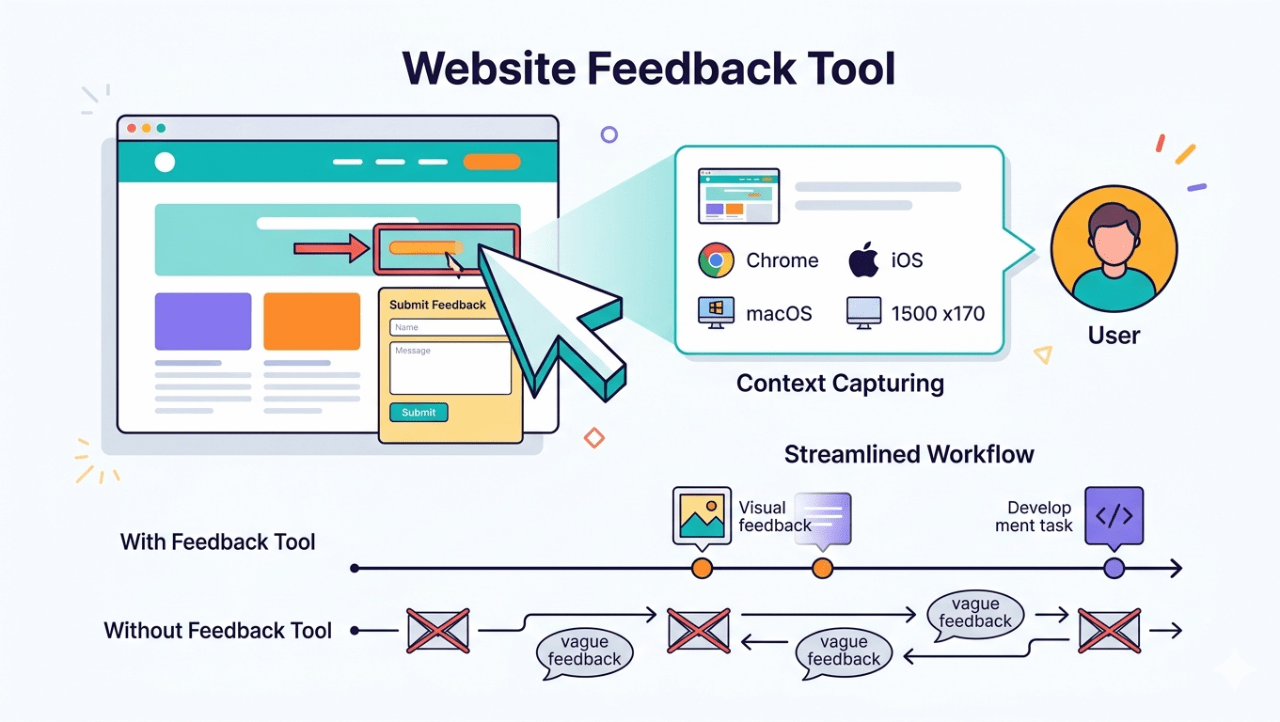
What does a website feedback tool actually do?
The short answer: it replaces the email thread. Instead of a client sending a vague screenshot with “can you fix the header?”, they click a button on the actual page, annotate the problem directly on screen, and submit. The tool captures what they can’t: browser, operating system, screen resolution, the current page URL, and JavaScript console errors.
For developers, that means a ticket arrives with everything needed to reproduce the issue. No follow-up questions. No “what browser were you using?” For project managers, it means a centralized log of all open issues instead of a scattered inbox. For clients and freelancers, it means fewer revision rounds and faster sign-off.
The Nielsen Norman Group’s research on usability feedback consistently shows that capturing feedback in context — at the moment the user encounters a problem — produces far more actionable insights than retrospective descriptions. That’s the core principle every good feedback tool is built on.
What are the two types of website feedback tools?
Website feedback tools fall into two main categories: visual feedback tools and visitor analytics tools, and the key difference is how they capture and use feedback data.
This is the distinction most comparison guides miss — and it’s the one that matters most when you’re choosing.
| Visual feedback tools | Visitor analytics tools | |
| Who uses them | Developers, QA, project managers, clients, freelancers | UX researchers, marketers, product teams |
| When | During builds, staging reviews, UAT, QA testing | On live sites, post-launch |
| What they capture | Annotated screenshots, bug reports, technical context | Heatmaps, session recordings, surveys |
| Output | Tickets in your PM tool (Jira, Trello, Asana…) | Analytics dashboards, behavioral insights |
| Best for | Finding and fixing specific issues | Understanding how visitors behave overall |
| Examples | Ybug, Marker.io, BugHerd, Usersnap | Hotjar, Microsoft Clarity, Survicate |
Most teams working on active web development need a visual feedback tool. Teams managing live websites for growth and UX optimization often add a visitor analytics tool on top. They’re not interchangeable — a heatmap tool won’t help your client report a broken checkout button, and a bug reporting widget won’t tell you where visitors are dropping off.
This article focuses primarily on visual feedback tools, since that’s where the biggest workflow impact is for development teams, agencies, and freelancers.
What features should the best website feedback tool have?
Before jumping into specific tools, here’s what actually matters:
- Automatic technical context capture. Every report should include browser, OS, screen resolution, page URL, and console logs without the reporter doing anything. This is non-negotiable for development teams — without it, half your tickets are missing the information needed to reproduce the issue.
- On-page annotation. Reviewers should be able to draw, highlight, and mark up the page directly — not describe locations in writing. “The button in the top right of the second section” is never as clear as an arrow drawn on a screenshot.
- Direct PM integrations. Reports should land in Jira, Trello, Asana, GitHub, ClickUp, or Slack as properly formatted tickets — not raw emails. Manual copy-pasting between tools kills adoption.
- Easy setup for non-technical reviewers. Clients and stakeholders shouldn’t need to install a browser extension or create an account to submit feedback. A widget embedded on the staging URL is the lowest-friction approach.
- Website design feedback support. A good website design feedback tool lets reviewers annotate not just bugs but also visual and layout issues — misaligned elements, wrong colors, spacing problems — directly on the page. This matters especially for agencies and freelancers who need clients to review designs in-browser, not in static mockups.
- Mobile-friendly submission. If your reviewers ever test on a real phone or tablet, browser extensions are out — they don’t work on mobile. A widget-based online website feedback tool embedded via snippet works on any device, in any browser, without setup. Essential for any project where responsive design is being reviewed.
- A free plan or trial. Most teams want to validate the workflow before committing. A usable free tier matters.
Which are the best visual feedback tools for teams and clients?
We’ve tested these tools across real development workflows — from solo freelancer projects to agency builds with 10+ stakeholders — and this is how the main options compare:
| Tool | Best for | Auto-captures tech context | Free plan | Direct PM integrations |
| Ybug | Developers, QA, agencies, freelancers | Yes — browser, OS, console, URL | Yes (FREE plan) | Jira, Trello, Asana, GitHub, Slack, ClickUp + more |
| Marker.io | Agencies, QA teams | Yes | No (trial only) | Jira, Asana, GitHub, Linear |
| BugHerd | Agencies, client reviews | Partial | No | Jira, Trello, Slack |
| Usersnap | SaaS, enterprise feedback | Yes | No (trial only) | Jira, Slack, Zendesk |
| Userback | Product teams, SaaS | Yes + session replay | Yes (limited time) | Jira, Asana, GitHub |
A few notes on each:
Ybug installs as a lightweight widget in under 5 minutes — no extension needed, no client account required. Every report includes an annotated screenshot plus full technical metadata. Reports push directly into integrations with Jira, Trello, Asana, and others. It’s the strongest option for teams that need a bug reporting tool that works equally well for internal QA and external client reviews.
Marker.io is strong for teams already using structured dev workflows — it has deep Jira sync and solid annotation. No free plan limits trial flexibility.
BugHerd focuses on agencies and has built-in task management, but the technical context capture is less comprehensive than Ybug or Marker.io.
Usersnap and Userback both target SaaS products and include more enterprise-facing features — useful if you need CSAT surveys alongside visual feedback, but heavier than most development teams need.
Tip: Look at Ybug’s comparison pages: Marker.io alternative, BugHerd alternative, Usersnap alternative, and Userback alternative in detail.
See how Ybug captures annotated screenshots and technical
context automatically with every report.
(no credit card needed)
How does a website feedback tool installation work?
Installation method matters more than most comparison guides admit — it shapes the entire experience for both your team and your clients.
There are three common approaches:
Snippet-based widget — you paste a short JavaScript snippet into your site’s <head>. The feedback button appears on every page automatically. Anyone visiting the URL can submit feedback immediately — no extension, no account, no extra steps. This is the lowest-friction method for client and stakeholder reviews.
Browser extension — reviewers install an extension in Chrome or Firefox. Works well for internal teams where you control the setup, but creates friction for clients who aren’t tech-savvy. Crucially, browser extensions don’t work on mobile devices — which rules them out for any review that involves testing responsive layouts on a real phone.
Shareable link — you enter the staging URL into the feedback platform and get back a unique link to share. No installation needed, works on any site including those you don’t control. The downside: clients have to remember a separate URL alongside the staging site, and many platforms require them to create an account before submitting.
Are there free website feedback tools?
Yes — and the options are more capable than most people expect.
- ✅ Ybug offers a FREE plan that includes the core widget, annotated screenshots, automatic technical context capture (browser, OS, console logs, page URL), and basic integrations.
- ✅ Marker.io and BugHerd both offer free trials (14 days), but no permanent free tier. If you need more than a trial window, you’ll be on a paid plan quickly.
- ✅ Usersnap has a free plan limited to a small number of feedback submissions per month — functional for very low-volume use, but you’ll hit the ceiling fast on an active project.
- ✅ Microsoft Clarity is completely free with no limits — but it’s a behavioral analytics tool, not a visual feedback tool. It gives you heatmaps and session recordings on your live site, which is genuinely useful, but it won’t help a client report a broken button on a staging build.
- ✅ Hotjar has a free tier for behavioral analytics with capped monthly sessions. Same category as Clarity — valuable for live site UX analysis, not for development-phase bug reporting or client reviews.
How do you choose the right website feedback tool for your use case?
Agencies and freelancers collecting client feedback during builds need a widget that clients can use without any setup — no extension, no account. Ybug and Marker.io are the strongest options here.
QA and UAT teams need automatic technical context capture and direct integration with their issue tracker. In practice, that means choosing tools like Ybug, Marker.io, or Usersnap. Anything that produces raw emails or requires manual data entry will slow the process down. See our guide to staging environment testing for a full walkthrough.
Project managers coordinating between clients and developers need a tool that centralizes all feedback and pushes it into wherever the dev team already works. If your workflow depends heavily on client collaboration, tools like BugHerd can work well thanks to their simple “pin on page” experience — especially for smaller projects or less technical stakeholders.
Teams managing live sites for growth or UX optimization should add a behavioral analytics tool — Hotjar or Microsoft Clarity — alongside their visual feedback tool. They solve different problems.
As a developer, I was tired of the 'reproduction loop' - spending an hour investigating a blurry screenshot for a fix that should have taken one minute. I built Ybug to kill that back-and-forth. By putting a widget directly on the page, we stop asking users for technical details and let the tool capture them automatically. The quality of our reports went up instantly, not because users changed, but because the tool started doing the heavy lifting for them.
What are the most common mistakes when choosing a website feedback tool?
Choosing a website feedback tool sounds simple — until you realize most teams pick based on features, not workflow. That’s where things usually break.
Here are the mistakes we see most often:
❌ Choosing a tool without automatic context capture
If your tool doesn’t capture browser, OS, screen resolution, and console logs automatically, your team will spend more time asking follow-up questions than fixing issues. Missing context is the #1 reason bug reports get ignored or delayed.
❌ Prioritizing features over ease of use
A powerful tool is useless if clients or stakeholders don’t use it. If feedback requires login, onboarding, or extensions, expect fewer reports and more frustration. The best tools remove friction completely.
❌ Using the wrong tool for the wrong stage
A heatmap tool won’t help your client report a broken button during QA. A visual feedback tool won’t tell you why users drop off after launch. These tools solve different problems — most teams need both.
❌ Ignoring integrations with your workflow
If feedback doesn’t land directly in your project management tool (Jira, Asana, Trello, Caflou, Slack, Linear), it gets lost. Manual copy-pasting is where feedback processes quietly fail.
❌ Forgetting about mobile testing
Many tools rely on browser extensions — which don’t work on mobile. If your team or clients test responsive layouts on real devices, this becomes a blocker fast.
❌ Not testing the tool with real stakeholders
What works for your dev team might completely fail for a client. Before committing, test the tool in a real scenario — with actual users, real feedback, and a real deadline.
A feedback tool is only as good as the reports it actually generates. If it’s too complex for a client, you’re stuck with blurry emails and zero context - no matter how many features the tool has.