Dark mode and smarter screenshots for your feedback widget

What’s in this article
Feedback is only as good as the context it provides. Our latest update for the Ybug widget focuses on improving both visuals and reliability. By introducing a refreshed design, dark mode support, and native screenshots, we’re making it easier for your users to report issues while giving you the exact technical details you need to fix them.
Here's a look at what's new.
A cleaner, more modern design
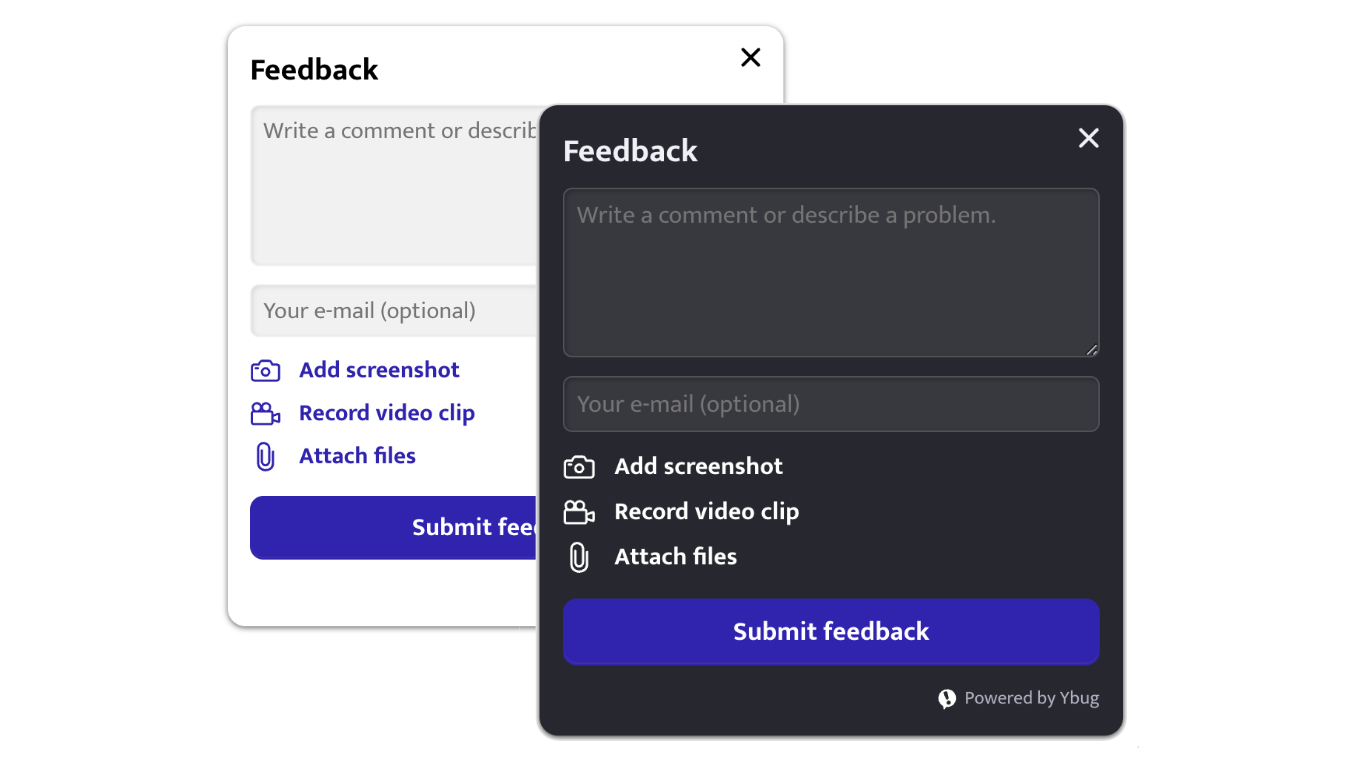
We’ve given the widget a fresh coat of paint and refined the layout. It’s not just about looking good, though. While the new, neat design certainly helps, these changes are really about simplifying the experience for your users and making feedback feel more natural. We've streamlined the color palettes and polished the UI so it fits in seamlessly on any modern website, from high-end SaaS platforms to clean marketing sites, without distracting from your content.
Dark mode is here
You asked, we listened. You can now configure the widget for dark mode. Whether you want it fixed to one theme or prefer it to switch automatically based on your user's system settings, we've got you covered. This is particularly useful for developer tools or dashboards with dark aesthetics where a bright white widget would feel out of place.
How to enable it: Head over to your project settings in the dashboard, find Widget configuration, and look under the Appearance tab.
For the developers in the room, you can also set this up via the JS API: color_scheme: 'light' | 'dark' | 'auto'
If you choose auto, you can even provide dark_primary_color and dark_secondary_color to supply another set of colors for the dark scheme. We've also added a contrast check. If your custom colors don't provide enough legibility, the widget will automatically fall back to safe colors to keep things accessible.
Pixel-perfect native screenshots
Our standard screenshot rendering is great because it's seamless and requires zero effort from your users. However, we know it can sometimes struggle with complex staging environments, localhost, or password-protected sites.
Previously, the best way to get pixel-perfect screenshots in these tricky environments was by using our browser extensions. We've changed that. With our new native screenshots feature, every user can now get those same high-quality results directly through the widget. It's an opt-in feature that ensures what you see in the report is exactly what the user saw on their screen. This is a helpful improvement for QA teams testing on local environments or behind strict firewalls where traditional rendering might miss a few details.
How it works
- You can enable this in your project settings under Widget configuration > Advanced tab (look for "Screenshot rendering mode").
- If you prefer code, you can use the JS API setting:
screenshot_mode: 'native'. - When active, the browser will ask the user for permission to capture the screen.
- If the user prefers not to grant permission, don't worry. We'll automatically fall back to our standard screenshot mode so you still get the visual context you need.
Ready to try it out?
All these updates are available now. Head over to your dashboard to tweak your widget settings, or check out our documentation to see the new JS API options in action.
As always, thanks for helping us make Ybug better. If you have any questions about these changes, just give us a shout!